Liturgical Music from 18th-Century Spain
April 21, 2014
Some Peek in the Stacks blog posts are authored by CSUN students who work in Special Collections and Archives. This week's post was written by Christian Cruz, a student assistant in the International Guitar Research Archives. Christian is a master's student majoring in Music, Guitar Performance.
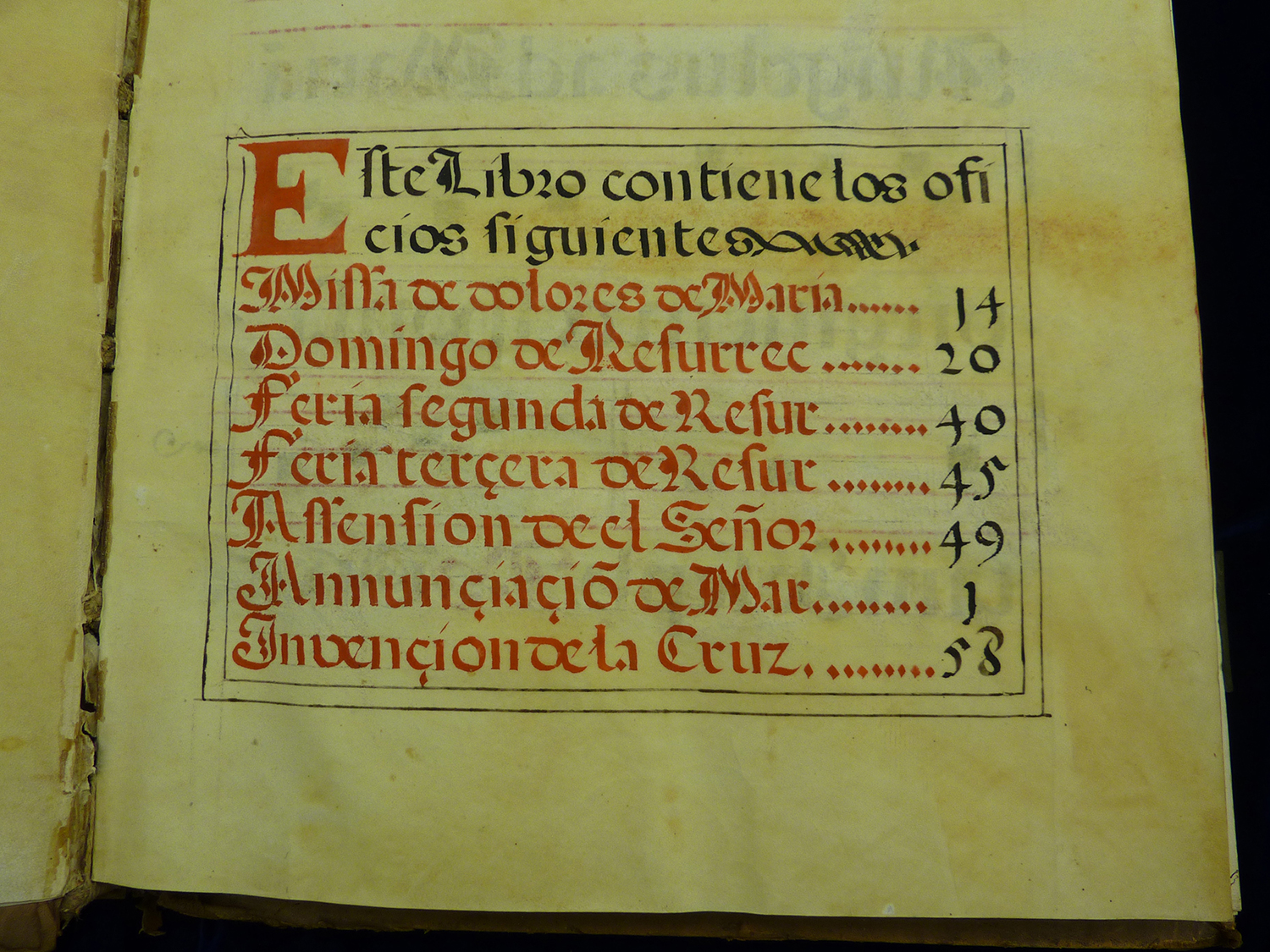
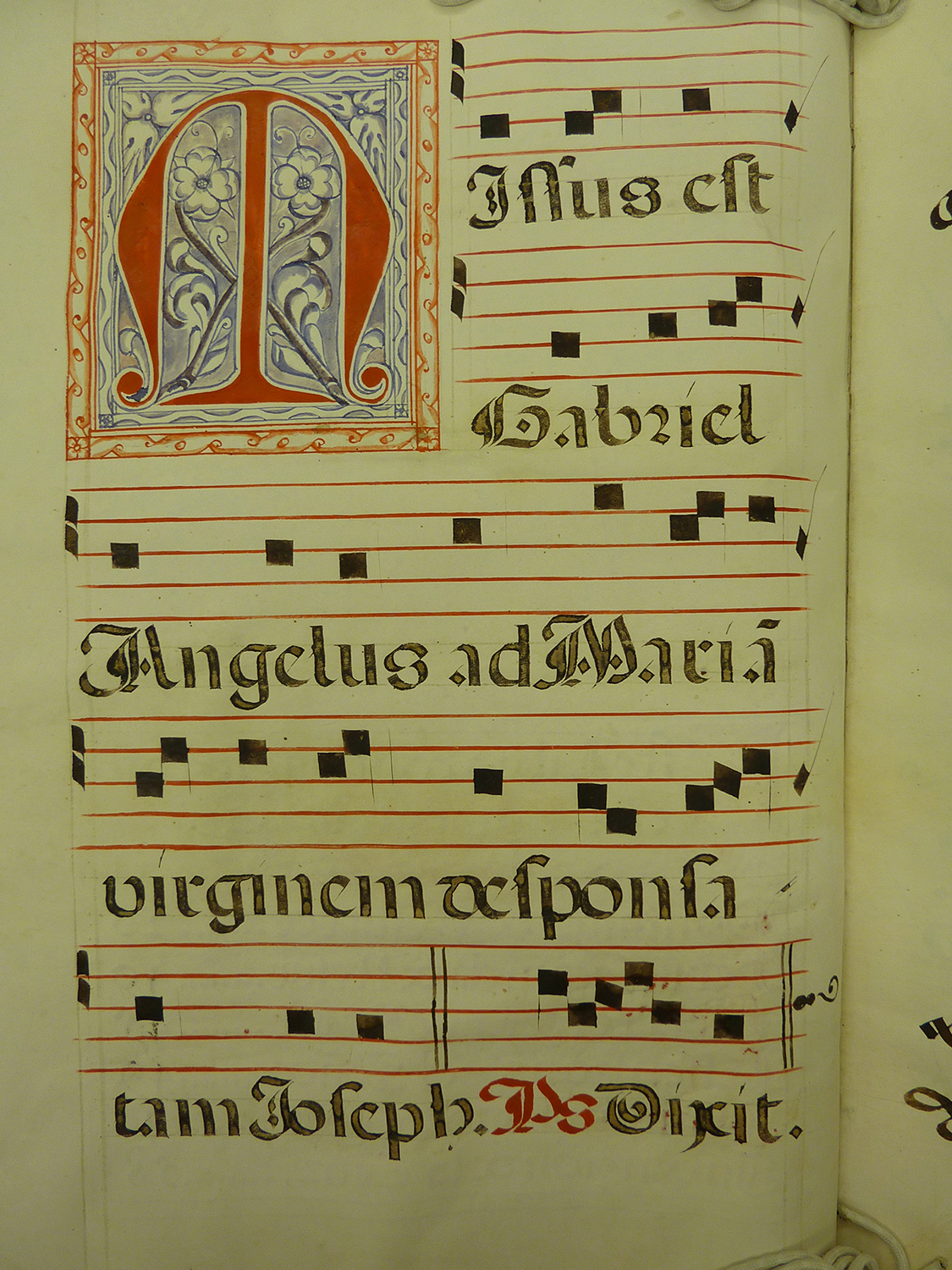
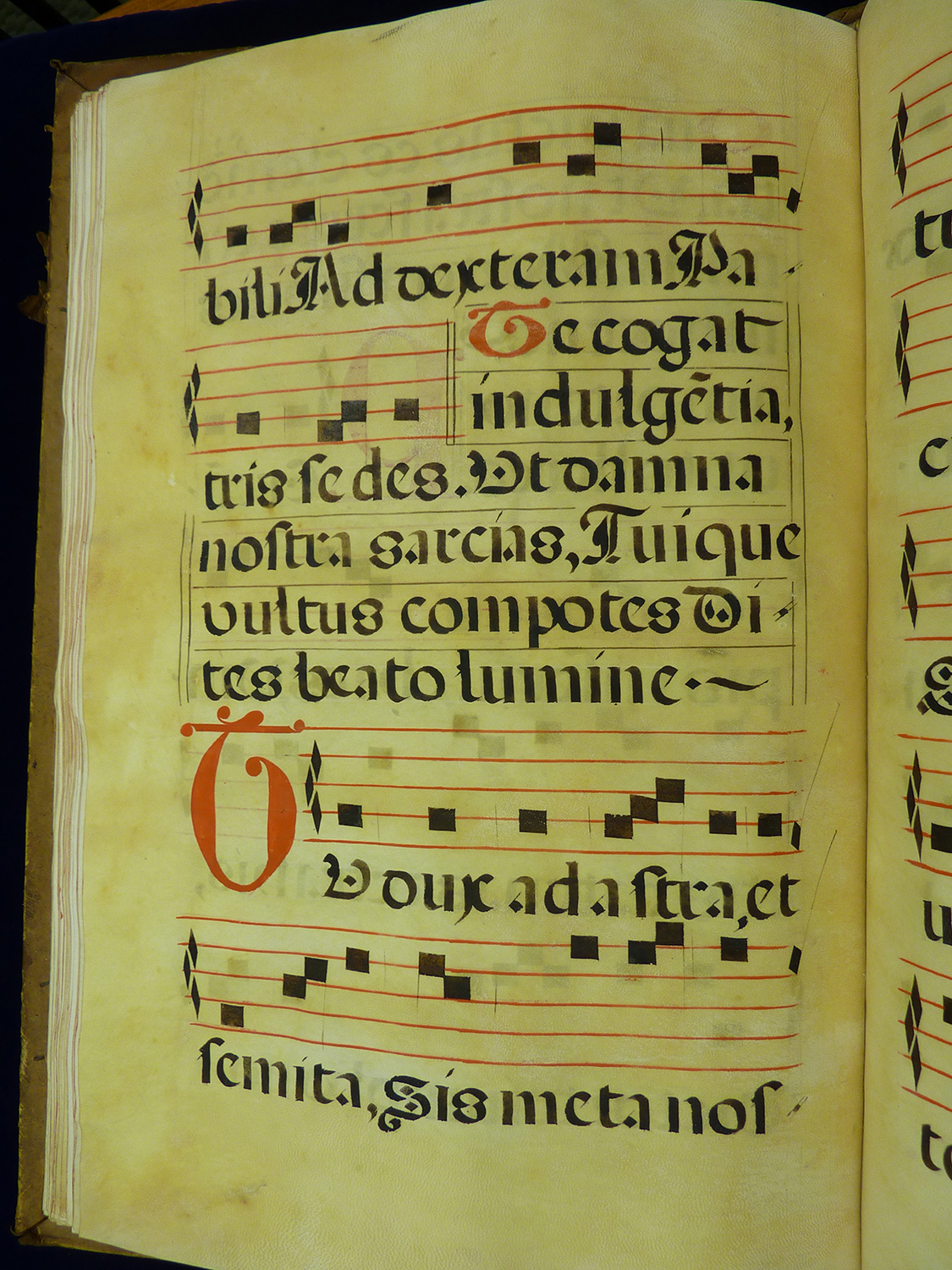
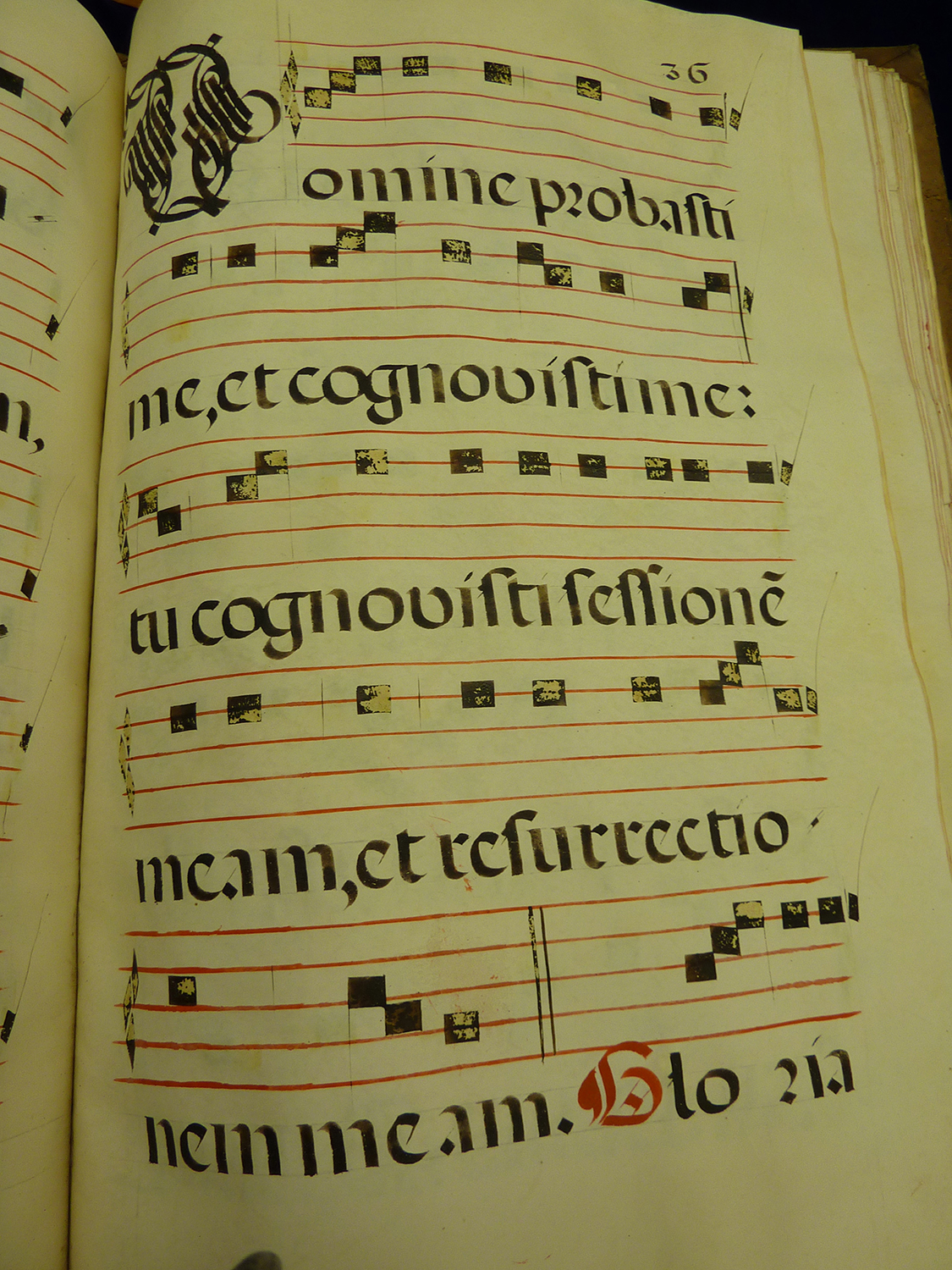
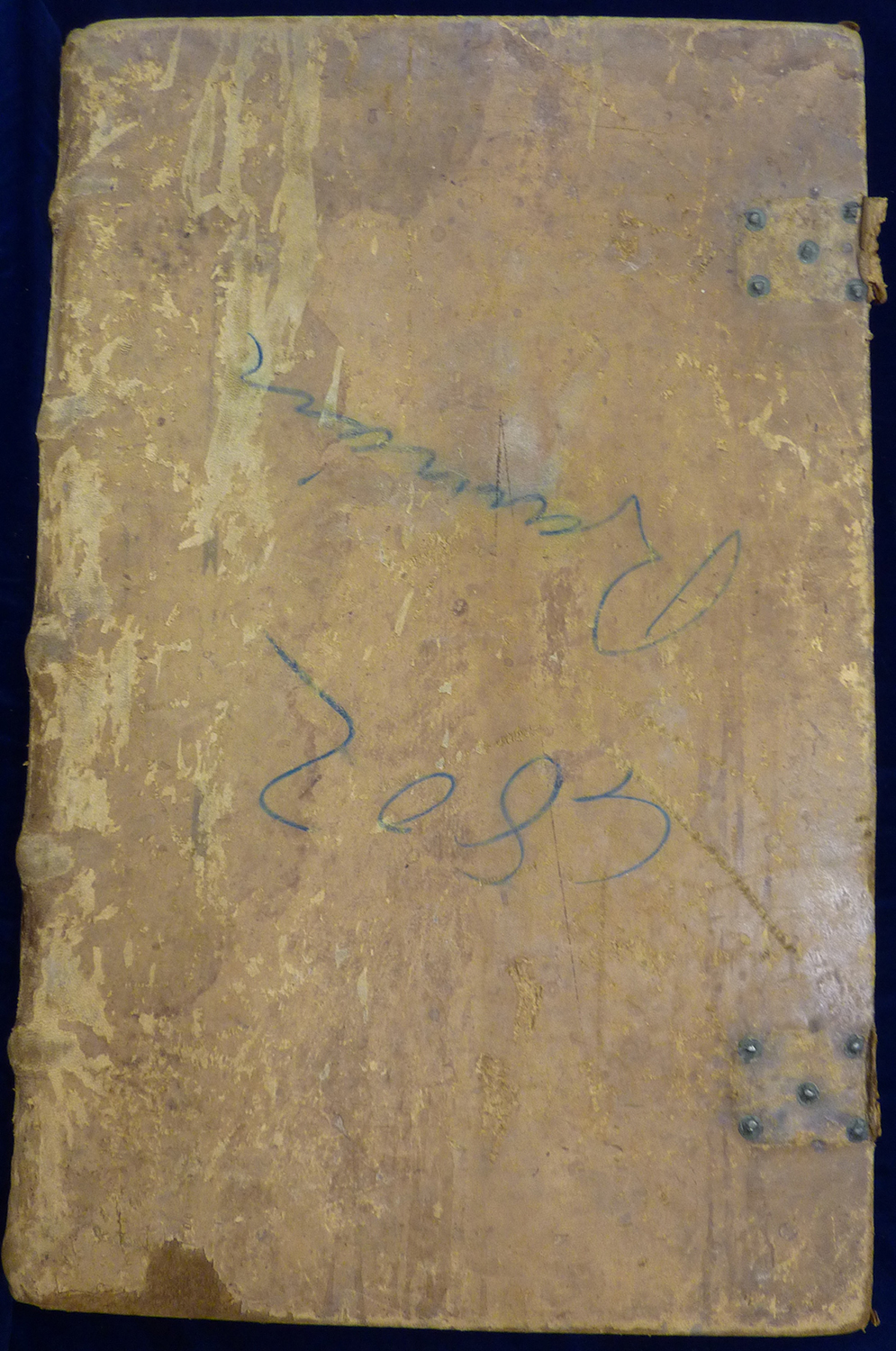
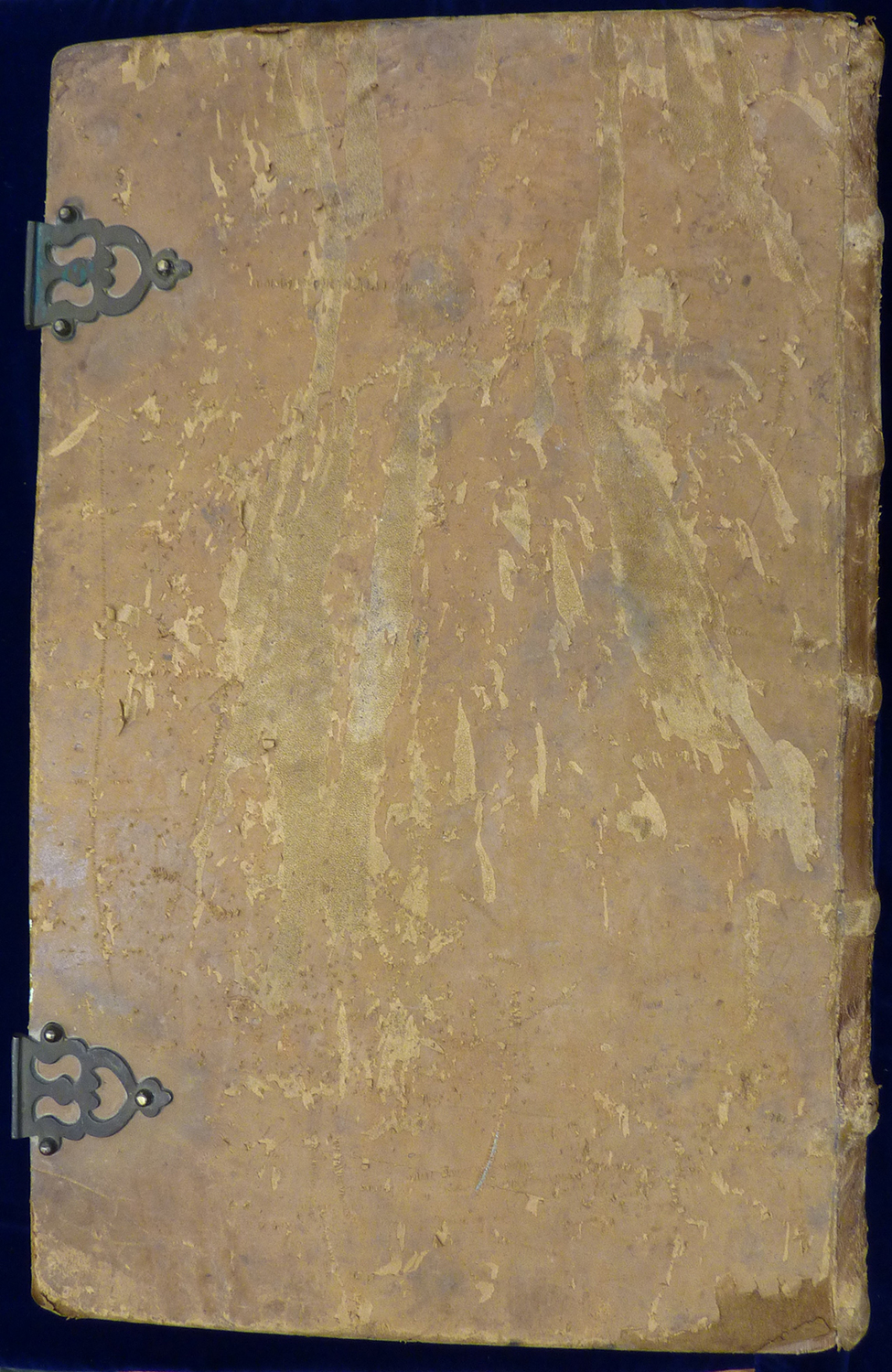
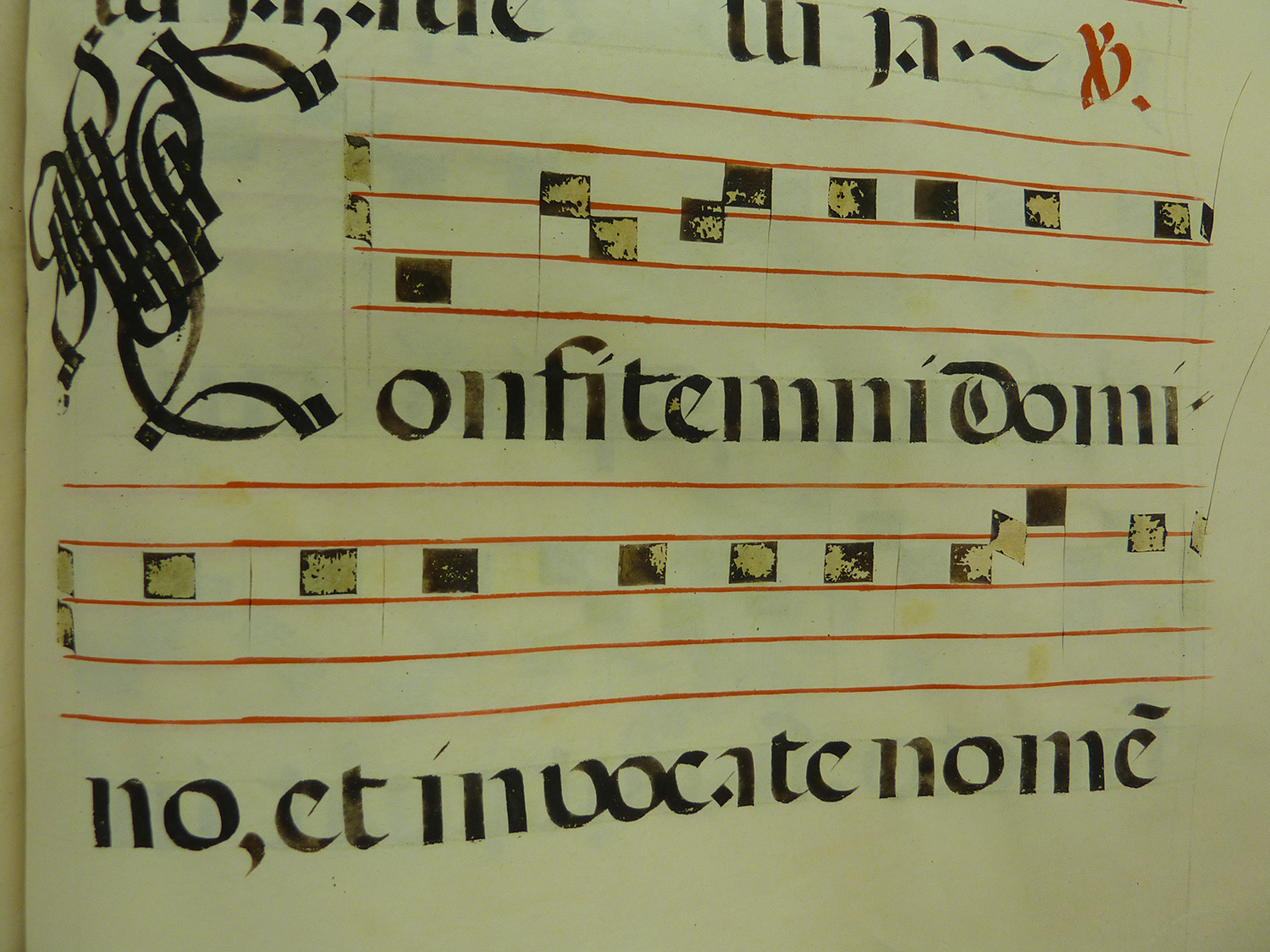
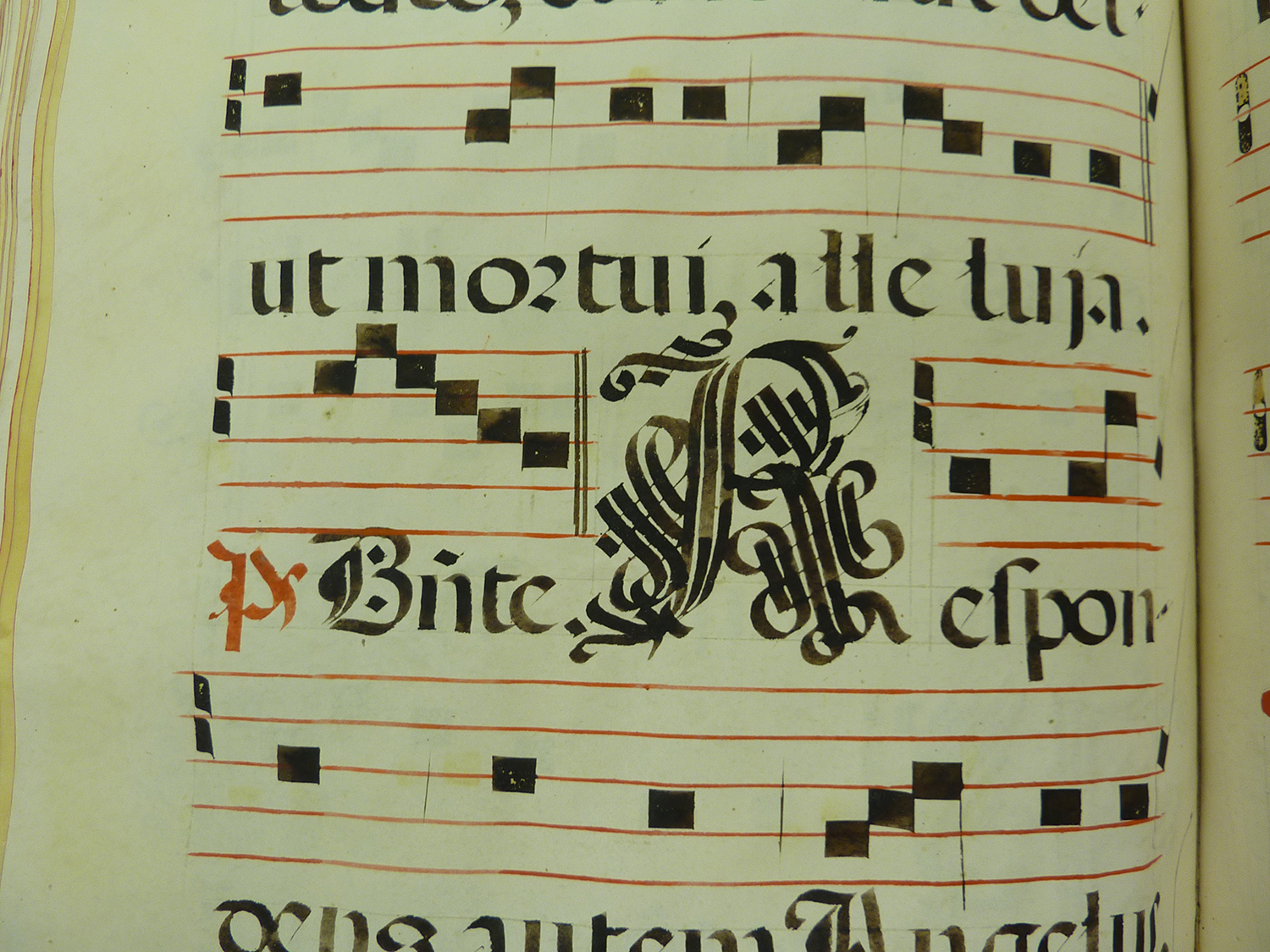
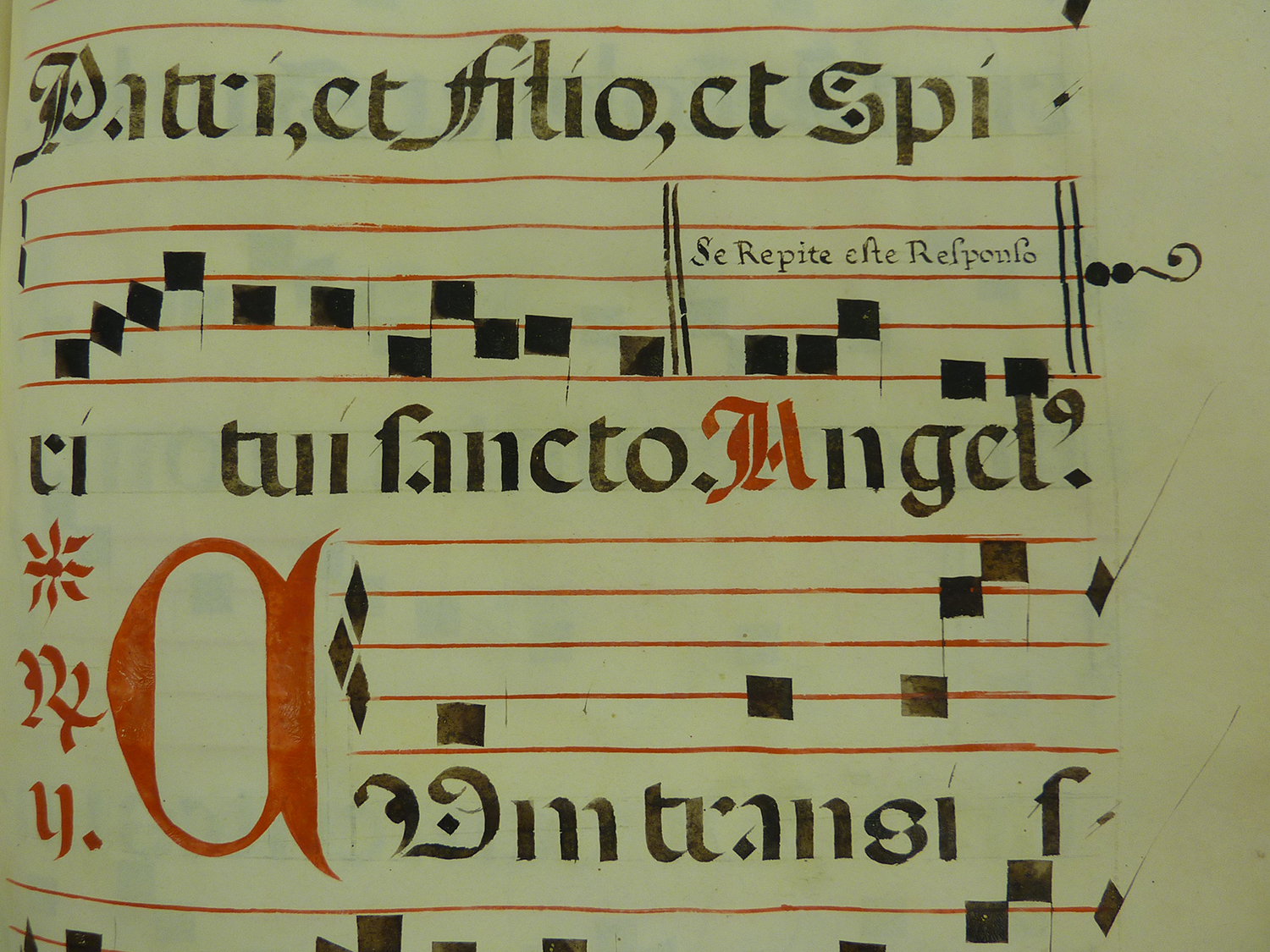
Earlier this year, Special Collections and Archives acquired a folio-sized antiphonary. An antiphonary is a collection of liturgical plainsong, or single-line melodies with no accompaniment usually sung by a small group of singers. These pieces of music, which are commonly known as Gregorian chant, were written to be performed during Catholic mass.
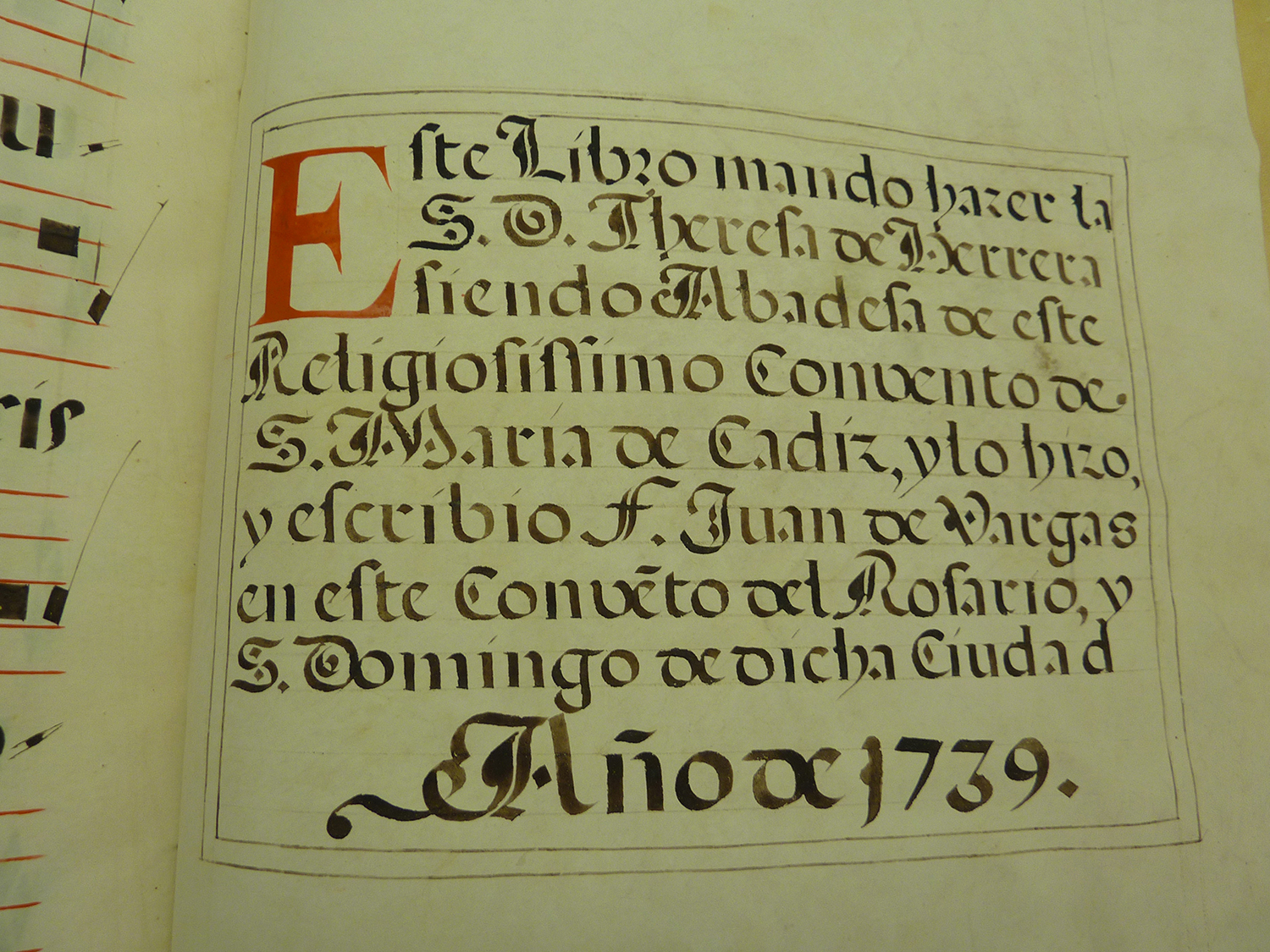
 The antiphonary in Special Collections and Archives has a colophon which reveals its origin and information about some of the practices and characteristics of liturgical music in Catholic Spain in the 18th century. A translation of the colophon from Spanish to English reads, “This book was sent to be made by Servant of God Theresa de Herrera Abbess of this very religious convent of Santa Maria of Cadiz, and it was made and written by F. Juan de Vargas in this convent of the Rosary, Santo Domingo of said city. Year of 1739”.
Although the colophon is in Spanish and reveals the book's origin as Cadiz, Spain, the rest of the volume is written in Latin, which was common at the time for sacred texts. This book was written during the end of the baroque period of music (1600-1750), when counterpoint, tonality, elaborate complexity and tension were the driving forces in music.
The Catholic Church had very specific and strict ideals when it came to music, even during this complex stylistic period. Dating back to the Council of Trent (1545-1563), the Catholic Church sought to get rid of any secular influence in music used in masses and for other religious purposes. One of the ways in which the Church achieved this goal was to eliminate complex polyphony, or musical textures consisting of two or more distinct and independent melodic lines. Polyphony was believed to blur the text and obscure its meaning. Singing chants, with just a single melodic line, is practice that has carried on in some religious music even up to the present day.
By 1739, when this book was produced, modern musical notation using a 5-line staff had already been developed. Interestingly, and perhaps because of the liturgical origin of this work in particular, this volume is written in neumes, an older system of musical notation that had developed nearly 900 years earlier in European monasteries. The system represents notes but not rhythms, and had largely fallen out of use by the 18th century.
Image Gallery

Post tagged as: special collections, rare books, international
Read more Peek in the Stacks blog entries